Your WordPress website might be running perfectly today. Your homepage loads, contact forms work, and customers can complete their purchases.
But here’s an uncomfortable question: What happens when the software running underneath your entire website stops receiving official security updates?
That’s exactly what’s about to happen to PHP 8.2.
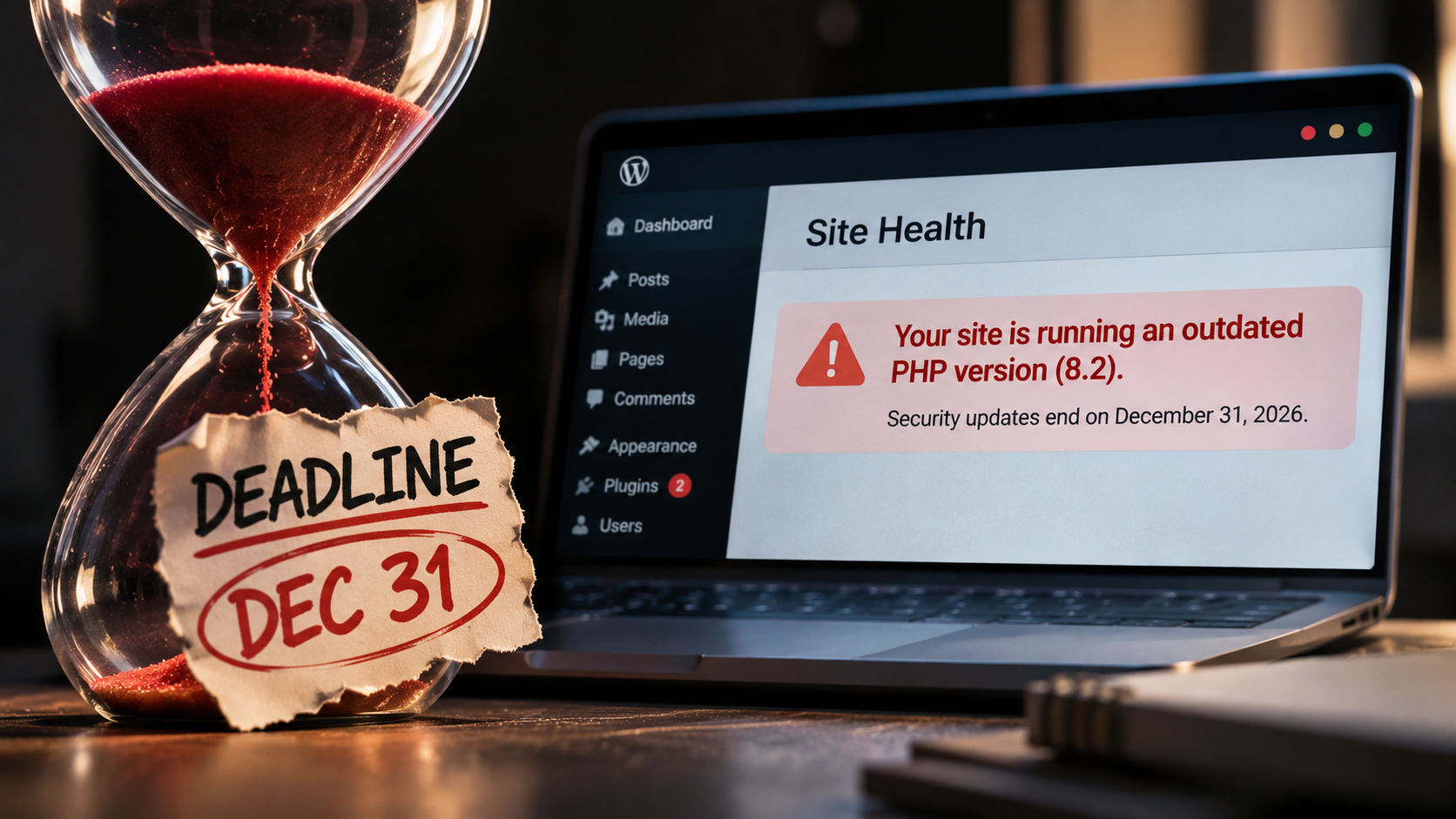
On December 31, 2026, PHP 8.2 reaches its official end of life (EOL). From January 1, 2027, the PHP development team will no longer release security patches for that branch.
And here’s the worrying part: thousands of website owners may not even realize they’re still using it.
You could have the latest WordPress installation, a premium security plugin, and every theme updated, yet still depend on a PHP version approaching the end of its support period.
Worse, your hosting provider may not automatically move you to a newer version if you’ve previously selected PHP 8.2 manually.
This isn’t just another routine software update.
It’s a deadline that affects the security and long-term maintenance of websites running WordPress.
In this guide, we’ll examine what happens when PHP 8.2 support ends, why so many WordPress websites are affected, how to check your hosting environment, and how to upgrade without accidentally taking your website offline.
PHP 8.2 End of Life: The December 31 Deadline You Cannot Ignore
PHP is the programming language that powers WordPress and many other content management systems.
Every time a visitor opens a dynamic WordPress page, submits a contact form, logs into an account, or completes a checkout, PHP may be involved in processing that request.
Like other software, PHP receives updates to address security vulnerabilities, fix bugs, and improve compatibility.
But PHP versions don’t receive updates forever.
The official PHP supported versions documentation confirms the security support deadlines for the currently supported branches.
| PHP version | Security support ends | Status in November 2026 |
|---|---|---|
| PHP 8.1 and older | Already ended | Unsupported upstream |
| PHP 8.2 | December 31, 2026 | Security support only |
| PHP 8.3 | December 31, 2027 | Security support only |
| PHP 8.4 | December 31, 2028 | Actively supported |
| PHP 8.5 | December 31, 2029 | Actively supported |
That means PHP 8.2 has less than eight weeks of official security support remaining as of November 6, 2026.
After December 31, developers maintaining the PHP project will stop publishing patches for that version.
Will Your WordPress Website Stop Working on January 1, 2027?
No.
And that’s precisely why the issue is easy to overlook.
Your website won’t suddenly display an error because the calendar changes to January.
Your WordPress dashboard won’t necessarily lock you out. Your theme won’t automatically disappear. Your server won’t shut down solely because PHP 8.2 has reached end of life.
Everything could continue functioning normally.
The problem is that newly discovered security vulnerabilities will no longer receive fixes from the official PHP project for version 8.2.
A website can remain functional while running software with unresolved security weaknesses.
Some Linux distributions and hosting providers offer their own extended security maintenance or backported fixes. But you should never assume those protections exist without confirmation from your provider.
Nearly 56% of WordPress Websites Could Enter 2027 Using Unsupported PHP
Here’s where the situation becomes particularly concerning.
WordPress.org publishes statistics showing which PHP versions are being used by WordPress installations that report information to its update infrastructure.
An early-November 2026 snapshot of those statistics found:
- 22.9% of reporting WordPress websites were using PHP 8.2.
- Approximately 33% were using PHP 8.1 or older.
- Combined, that represents approximately 55.9% using versions that will be outside official PHP security support by January 2027.
These figures describe the WordPress installations included in the reporting dataset, not a complete census of every WordPress website worldwide.
They also represent a snapshot, not a prediction that nobody will upgrade before the deadline.
Nevertheless, the implication is significant.
Unless a substantial number of websites move to supported versions, a large portion of the WordPress ecosystem could enter 2027 without current upstream PHP security support.
You can review the latest figures through WordPress.org’s official statistics page.
Why Is This More Serious Than an Outdated WordPress Plugin?
An outdated plugin can introduce security problems within a particular WordPress installation.
An outdated PHP runtime is different.
PHP sits underneath WordPress itself.
WordPress core, themes, plugins, and custom PHP code all depend on the PHP environment provided by the server.
On many hosting configurations, several applications or websites may share a particular PHP installation, although hosts can also isolate PHP versions by account, site, or environment.
If a vulnerability exists within PHP itself, updating an individual WordPress plugin won’t necessarily resolve that vulnerability.
The relevant PHP runtime must be patched or replaced.
That’s why maintaining the server environment deserves just as much attention as updating WordPress.
For businesses managing technical website health, this is also an important part of ongoing technical SEO and website maintenance. Search optimization isn’t particularly useful when visitors cannot reliably access the website.
PHP Already Had Two Critical Security Vulnerabilities in October 2026
If you think the PHP 8.2 deadline is merely theoretical, consider what happened just weeks ago.
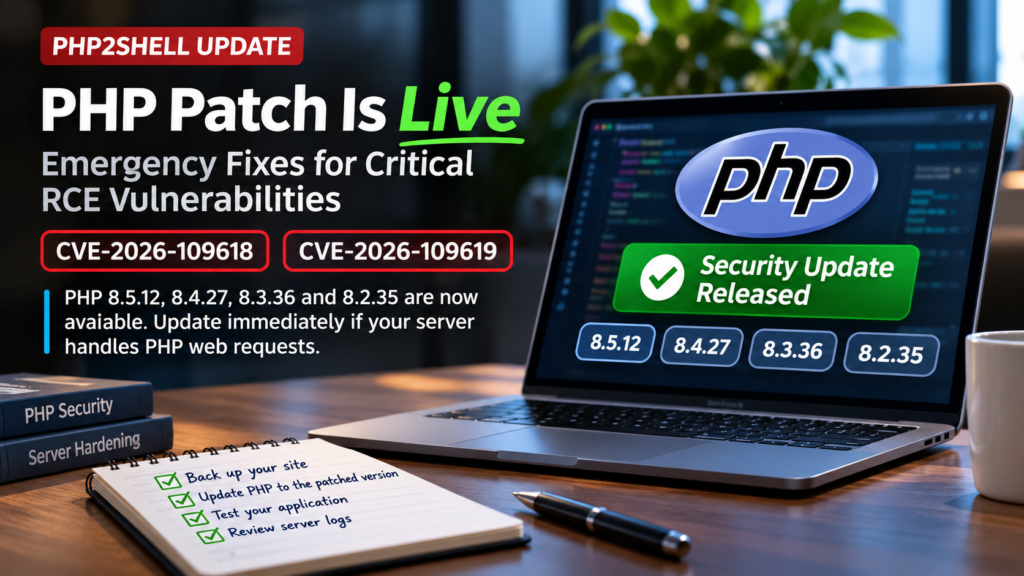
On October 21, 2026, the PHP development team released security updates addressing two critical vulnerabilities:
CVE-2026-109618 and CVE-2026-109619.
Both were associated with potential unauthenticated remote code execution.
In practical terms, vulnerabilities of this severity can potentially allow an attacker to execute malicious code under affected conditions without first authenticating as a legitimate user.
The PHP team released patched versions:
| PHP branch | October 2026 security release |
|---|---|
| PHP 8.2 | 8.2.35 |
| PHP 8.3 | 8.3.36 |
| PHP 8.4 | 8.4.27 |
| PHP 8.5 | 8.5.12 |
According to the official PHP security announcements, upgrading was strongly recommended.
The European Union’s Computer Emergency Response Team also published an advisory about the vulnerabilities and recommended prompt patching.
Now imagine a similar vulnerability being discovered after PHP 8.2 reaches end of life.
Supported branches would remain eligible for new upstream security fixes.
PHP 8.2 would not.
That is the real consequence of continuing to use an unsupported version.
October’s vulnerabilities demonstrate why keeping PHP patched matters. They do not prove that every website using PHP 8.2 is already compromised.
How to Check Whether Your WordPress Website Uses PHP 8.2
Fortunately, identifying your WordPress PHP version is straightforward.
You don’t need to be a professional developer or have access to the server’s command line.
Method 1: Check Through WordPress Site Health
Log into your WordPress dashboard.
Navigate to:
Tools → Site Health → Info → Server
Expand the Server section.
Look for the PHP version field.
You might see something like:
PHP version: 8.2.35
Or:
PHP version: 8.4.27
If you’re using PHP 8.2, you need to plan your upgrade before December 31.
If you’re using PHP 8.1 or an older version, you’re already beyond the official upstream support period.
And if you’re on PHP 8.2 but haven’t received the October security release or an equivalent vendor patch, don’t wait until the end-of-life deadline to investigate.
Method 2: Check Through Your Hosting Control Panel
Most WordPress hosting companies provide PHP management tools.
For example, depending on the hosting provider, you may find the relevant configuration under:
- SiteGround: Site Tools → Devs → PHP Manager
- cPanel: MultiPHP Manager or Select PHP Version
- Plesk: Websites & Domains → PHP Settings
- Other managed WordPress platforms: Website settings, server settings, or PHP configuration
The exact navigation can change depending on the host and hosting plan.
The important thing is identifying both the active PHP version and whether upgrades are managed automatically.
Method 3: Check Multiple WordPress Websites Together
If you manage several WordPress websites, checking every dashboard individually can become tedious.
A centralized WordPress management tool, such as MainWP, can help you inventory the PHP versions used by your websites.
Start by sorting sites into three groups.
Priority 1: PHP 8.1 and older.
Priority 2: PHP 8.2, especially installations missing the latest security patches.
Priority 3: PHP 8.3 and newer, which still require regular patch maintenance but have later support deadlines.
This gives you a practical upgrade queue instead of making changes randomly.
The WordPress Theme Problem Nobody Wants to Deal With
Here’s something many website owners discover only after changing PHP versions.
The WordPress installation itself may work perfectly.
But an old theme, custom function, or abandoned plugin can break.
PHP upgrades occasionally remove older programming features or change how certain operations behave.
For example, PHP 8.0 removed functions such as:
create_function()
and
each()
These were available in earlier versions of PHP.
If an outdated theme still attempts to use a removed function, it can trigger a fatal error.
The website may then display a message such as:
“There has been a critical error on this website.”
For an ordinary visitor, that means your website isn’t working.
For a business owner, that could mean lost inquiries, interrupted purchases, or a damaged customer experience.
Why Older Themes Deserve Extra Attention
A theme can continue functioning for years without receiving updates.
That doesn’t automatically make it insecure.
However, a theme that hasn’t been maintained for several years deserves closer inspection before a major PHP upgrade.
Check the following:
- When was the theme last updated?
- Does the developer document compatibility with newer PHP versions?
- Are recent support requests being answered?
- Does the theme depend on outdated plugins or libraries?
- Does it contain custom PHP modifications that haven’t been reviewed recently?
The same questions apply to plugins.
A well-maintained custom theme can be perfectly suitable, while a recently updated theme can still contain defects. Update history is a useful signal, not definitive proof of compatibility.
This is one reason ongoing WordPress development and maintenance should include compatibility testing, not simply updating plugins whenever a notification appears.
How to Check PHP Compatibility Before Upgrading WordPress
Changing the PHP version without checking compatibility can create unnecessary downtime.
Fortunately, several tools can help identify potential issues before the switch.
One option is CompatNav, a PHP compatibility checker available in the official WordPress plugin directory.
The plugin scans installed theme and plugin code to identify patterns that may cause compatibility problems when upgrading to newer PHP versions.
It supports checking upgrade compatibility across PHP 8.0 through PHP 8.5.
Using CompatNav to Scan Your Website
Start by logging into WordPress.
Navigate to:
Plugins → Add New Plugin
Search for:
CompatNav – PHP Upgrade Checker
Install and activate the plugin.
Then open:
Tools → CompatNav
Choose the PHP version you’re planning to use.
For example, if your site currently runs PHP 8.2, you might choose PHP 8.4.
Run the compatibility scan.
The plugin can identify potential breaking changes, deprecated functionality, and files requiring further attention.
After reviewing the report, update or repair incompatible code before changing the production environment.
You can find the plugin on the official WordPress plugin directory.
Is a Clean Compatibility Report Enough?
Not entirely.
Static analysis tools examine code without necessarily executing it through every possible application workflow.
Some issues only appear when the website processes actual information.
A WooCommerce checkout problem, for example, may not be apparent simply from scanning the theme files.
Similarly, a booking form could work on one page but fail when a particular plugin feature is used.
Treat compatibility scans as an early warning system, not a guarantee that everything will work after upgrading.
The next step is testing.
Do Not Upgrade PHP on Your Live Website Without Testing
This is where website owners need to be careful.
Updating PHP is not inherently dangerous, but changing the runtime environment can reveal existing compatibility problems.
That’s why it’s sensible to test the upgrade on a staging website first.
A staging environment is a separate copy of your live website.
It allows you to make changes and test functionality without immediately affecting real visitors.
Step 1: Create a Staging Website
If your hosting provider offers staging functionality, create a copy of your existing WordPress installation.
For example, SiteGround includes WordPress staging functionality with its GrowBig and GoGeek plans.
Navigate to:
Site Tools → WordPress → Staging
Create a copy of the website.
Ensure the staging environment is appropriately restricted from search indexing and public access.
Step 2: Change the Staging Site’s PHP Version
Once the staging environment is ready, open the PHP management settings.
On SiteGround, you can inspect the staging site’s PHP settings under:
Site Tools → Devs → PHP Manager → Staging Sites
Where the hosting configuration allows it, change the staging environment to PHP 8.4.
PHP 8.4 is a reasonable target for many WordPress installations in late 2026 because it remains in active support and has security coverage until the end of 2028.
PHP 8.5 offers an even longer support window, but you should first confirm that your WordPress version, plugins, themes, and hosting provider support it reliably.
Step 3: Test the Important Website Functions
Don’t simply open the homepage, see that it looks normal, and declare the upgrade successful.
Test the functionality that actually matters to your business.
For a typical WordPress website, that includes:
- Homepage and major landing pages
- Navigation menus and interactive elements
- Contact forms and email notifications
- Search functionality
- Login and account management
- Custom post types and dynamic content
- Mobile and desktop layouts
For a WooCommerce store, also test product selection, cart calculations, checkout, payment gateways, and order notifications using appropriate test transactions.
For membership websites, check subscriptions, account permissions, and restricted content.
Review PHP error logs for warnings or errors that may not appear in the browser.
Step 4: Create a Fresh Production Backup
Before changing your live website’s PHP version, create a complete backup of the website files and database.
Store a recoverable copy outside the live website when possible.
If your hosting provider offers automated backups, verify that a recent restore point actually exists.
Don’t assume that a scheduled backup succeeded merely because the feature is enabled.
A backup is especially important if you also need to update plugins, themes, or custom code during the migration.
One important distinction: restoring a WordPress backup does not automatically restore the previous PHP runtime.
If the new PHP version causes a compatibility problem, you may need to temporarily select the previous PHP version through your hosting panel while fixing the affected code.
Step 5: Upgrade the Live Website
Once staging tests pass and a fresh backup exists, choose a suitable maintenance window.
Change the production PHP version through your hosting control panel.
Then immediately check the main website functions again.
Test the site both while logged into WordPress and in a private browsing window.
This matters because caching systems may serve different responses to administrators and ordinary visitors.
A logged-in administrator might see a working page while visitors receive an outdated cached response, or the reverse.
Clear applicable caches and check your site from the visitor’s perspective.
If you’re managing a business-critical website, keep error monitoring enabled during the migration period.
Your Hosting Provider Might Not Upgrade PHP Automatically
Now for the part that deserves more attention.
Many website owners assume their hosting provider automatically handles every server-side software update.
Sometimes that’s true.
But not always.
Hosting companies have different policies for managed and manually selected PHP versions.
For instance, SiteGround provides a feature called Managed PHP.
When enabled, SiteGround manages PHP upgrades according to its own release and stability policies.
However, SiteGround’s documentation explains that when a website owner manually chooses a PHP version, the provider does not automatically update that selected version through its normal managed PHP process.
You can verify this in SiteGround’s Managed PHP documentation.
Why Does This Matter?
Imagine that someone selected PHP 8.2 manually months ago because an older plugin wasn’t compatible with PHP 8.3.
The website continues working.
Nobody revisits the PHP configuration.
Meanwhile, newer versions become available and PHP 8.2 approaches end of life.
If the account remains on manual PHP management, it may not follow the provider’s usual automatic version upgrades.
The host may eventually discontinue that PHP version or enforce a transition, but you shouldn’t assume the timing will match your own maintenance schedule.
The safest approach is to check the PHP management setting yourself.
If your website uses managed PHP, confirm how and when your host upgrades versions.
If it uses manually selected PHP, create a migration plan.
And if your provider advertises extended security support for older PHP versions, ask exactly what that includes.
Can Your Hosting Provider Still Secure PHP 8.2 After December 2026?
Potentially, but there’s an important distinction between upstream support and vendor-maintained security patches.
After December 31, 2026, the official PHP project will stop supporting the PHP 8.2 branch.
That doesn’t necessarily mean every hosting company or commercial maintenance provider immediately stops protecting every installation.
Some Linux distributions and extended-support vendors backport security fixes.
A backported fix applies a relevant security correction to an older software branch without necessarily changing its main version number.
For example, a hosting environment may still display an older version number while receiving selected vendor-provided patches.
This is why version numbers alone don’t always tell the complete security story.
However, extended maintenance depends on the provider, the relevant vulnerabilities, and the scope of support.
A website owner should ask:
Does my hosting provider offer security patches for PHP 8.2 after December 31, 2026, and for how long?
If the answer is unclear, upgrading to a currently supported PHP branch is the more dependable long-term approach.
Which PHP Version Should WordPress Users Choose in 2026?
For most maintained WordPress installations, PHP 8.4 is a sensible version to evaluate first.
It has official security support through December 31, 2028.
PHP 8.5 extends that support period through December 31, 2029 and may also be suitable when the entire application stack supports it.
PHP 8.3 remains supported until the end of 2027.
This makes it a possible intermediate upgrade for websites that aren’t ready for PHP 8.4 or 8.5.
But the newest version isn’t automatically the right choice for every website.
You need to consider compatibility with:
- Your WordPress core version
- Your installed themes
- Third-party plugins
- Custom PHP functionality
- WooCommerce or other application dependencies
- Your hosting configuration
The goal is not simply selecting the largest version number.
It’s moving to a supported, patched PHP environment that your website can run reliably.
What Happens to SEO If a PHP Upgrade Breaks Your Website?
PHP version upgrades aren’t a direct Google ranking factor in the same sense as a relevance or content signal.
But the operational consequences of a failed upgrade can affect organic search performance.
Consider what happens if a major PHP compatibility problem causes important pages to return HTTP 500 errors.
Visitors can’t access the content.
Search engine crawlers may also encounter server errors when requesting those URLs.
If the problem persists, search engines may reduce crawling or eventually reassess the availability of affected pages.
Broken forms and checkout processes can also harm conversions even when the pages remain accessible.
A successful upgrade may improve performance in some environments, but any speed improvements should be measured rather than assumed.
This is why PHP migrations belong within a broader technical website maintenance process.
If you’re responsible for a business website, combining hosting maintenance with regular technical SEO checks helps identify server errors, accessibility problems, and crawling issues before they become prolonged incidents.
What to Do If Your WordPress Website Breaks After Upgrading PHP
Suppose you’ve completed the upgrade, but the website suddenly displays a critical error.
First, avoid making several unrelated changes at once.
If the site was working immediately before the PHP switch, investigate compatibility with the new runtime.
Open your hosting control panel and review the available PHP versions.
If necessary and still permitted by your host, temporarily switch back to the previously working PHP version to restore service while troubleshooting.
Remember that reverting to PHP 8.2 is a temporary recovery measure, not a long-term solution after its support deadline.
Next, check the server’s PHP error logs.
Look for messages identifying a plugin, theme file, missing function, or incompatible code.
Update or repair the component responsible for the failure.
Repeat the upgrade in staging and test the affected functionality.
If the problem involves custom code, seek developer assistance rather than repeatedly changing server settings without identifying the cause.
Finally, perform the production upgrade again once the compatibility issue has been resolved.
A rollback plan makes an upgrade safer, but the ultimate goal remains moving the website onto supported software.
Your November 2026 WordPress PHP Upgrade Checklist
With the PHP 8.2 deadline approaching, there’s no reason to leave the entire process until the final week of December.
Here’s a practical migration schedule.
Week 1: Audit Your Websites
Identify every website running PHP 8.2 or older.
Check the hosting provider, PHP configuration, installed WordPress version, and available backups.
Prioritize websites running PHP 8.1 or older because those branches are already unsupported by the PHP project.
Week 2: Review Themes and Plugins
Check whether your themes and plugins are maintained and compatible with PHP 8.4 or 8.5.
Run a compatibility scanner where appropriate.
Identify any abandoned components or custom code that may require attention.
Week 3: Test on Staging
Create staging copies of your websites.
Upgrade the staging environments and test the important functionality.
Review logs and resolve compatibility issues.
Week 4: Upgrade Production
Create fresh backups.
Schedule the production upgrades during appropriate maintenance windows.
Change PHP versions, test visitor-facing functionality, and monitor errors.
The aim is to complete major upgrades in November and keep December available for resolving unexpected compatibility problems.
The worst possible strategy is discovering on December 30 that your most important business website depends on a plugin nobody has maintained for years.
Frequently Asked Questions About PHP 8.2 End of Life
When does PHP 8.2 reach end of life?
PHP 8.2 reaches its official end of life on December 31, 2026. The PHP development team will stop providing security updates for that branch after this date.
Will my WordPress website stop working after December 31, 2026?
No. Reaching end of life does not automatically disable a PHP installation. Your website may continue running, but the PHP project will no longer publish fixes for newly discovered vulnerabilities affecting PHP 8.2.
Is PHP 8.2 safe to use right now?
PHP 8.2 is still within its official security support period until December 31, 2026. However, websites should be running the appropriate patched release, including the October 2026 security fixes, or equivalent vendor-maintained patches.
Is PHP 8.3 better than PHP 8.2?
PHP 8.3 has a later security support deadline, ending December 31, 2027. It is a more sustainable choice than PHP 8.2 for websites that can run it reliably.
Should I upgrade directly to PHP 8.5?
PHP 8.5 offers the longest official support period among the stable versions available in early November 2026. However, you should verify WordPress, theme, plugin, and hosting compatibility before adopting it.
Does updating WordPress automatically update PHP?
No. WordPress core and the PHP runtime are separate software components. PHP updates are generally managed through the hosting environment or by the server administrator.
Can outdated PHP versions cause WordPress security issues?
Yes. Unsupported PHP versions may contain vulnerabilities that will no longer be patched by the official PHP project. Some hosting vendors provide extended support, but that protection must be confirmed.
Can changing PHP versions break Elementor or WooCommerce?
It can. Compatibility problems may occur in plugins, themes, integrations, or custom code. Testing on staging helps identify these issues before changing the live website.
Will upgrading PHP improve WordPress speed?
Potentially. Newer PHP releases can provide performance improvements, depending on the website and hosting setup. Benchmarking before and after the upgrade is the best way to determine the actual impact.
Can I downgrade PHP if my site breaks?
Many hosting providers allow PHP version changes through their control panels. However, access to older versions varies, and downgrading to an unsupported version should be treated only as a temporary troubleshooting measure.
Final Thoughts: Don’t Let an Avoidable PHP Problem Become Your 2027 Headache
The end of PHP 8.2 security support is not a hypothetical event.
It’s happening on December 31, 2026.
The PHP project has published the deadline, recent security vulnerabilities have demonstrated the importance of timely patching, and a substantial share of WordPress installations still report using older PHP branches.
But the deadline doesn’t mean every site running PHP 8.2 will suddenly become compromised.
It means website owners need to make an informed decision about the software supporting their websites.
Check your PHP version.
Understand your hosting provider’s update policy.
Review your themes and plugins.
Test upgrades in a staging environment.
Create reliable backups.
And most importantly, move to a supported, appropriately patched PHP version before the deadline whenever possible.
Your website shouldn’t have to break before you start taking server maintenance seriously.
For more practical guidance on website performance, search visibility, and technical issues, explore the KS Rehan SEO & AI Notes.
And if you want to evaluate your site’s broader search and technical performance, you can request a free website SEO and GEO audit.
Don’t wait until January to discover a problem that you could have addressed in November.